WordPress Image Optimization: Why Your Site Is Slow and How to Fix It
You've tightened your caching. You've upgraded your hosting. Your site is still slow.
Check your media library. On most content-heavy WordPress sites, images account for more page weight than everything else combined — and unlike server tuning or a theme rebuild, this one is genuinely straightforward to fix.
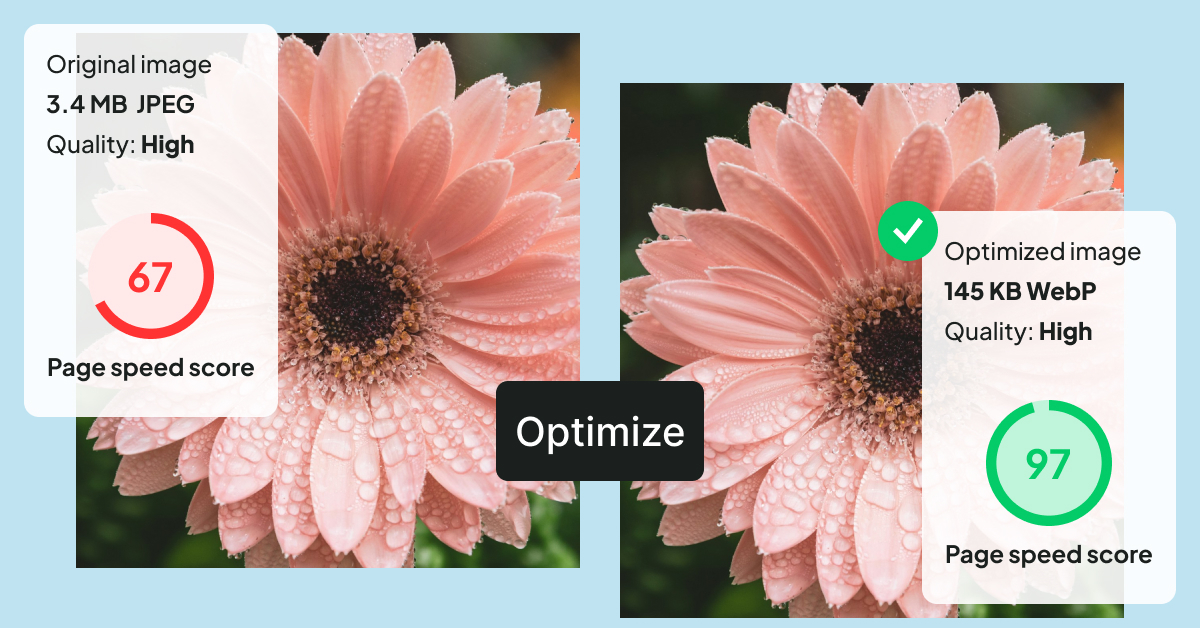
The problem nobody notices until it's expensive
Someone on your team uploads a product photo straight from a phone. It's 4MB. WordPress dutifully generates half a dozen smaller dimensions of it — but generating a smaller size is not the same as generating a smaller file.
That image now loads on every page it appears on, for every visitor, forever.
Multiply that by a few thousand uploads over a few years, and you have a site that's slow for reasons no plugin audit will flag. There's no error. Nothing is broken. It's just heavy.
What it actually costs you
Slower pages lose visitors. Every additional second before your content appears gives someone a reason to leave — and on mobile connections, oversized images are usually the reason.
Google is watching. Core Web Vitals are part of how search engines assess page experience, and Largest Contentful Paint is frequently measured against your hero or featured image. If that image is oversized, your LCP score reflects it.
You're paying to deliver the extra weight. Bandwidth isn't free. On usage-based hosting or CDN plans, an unoptimized library is a recurring line item you never agreed to.
Your ad spend works harder for worse results. Paid traffic landing on a slow page converts worse than the same traffic landing on a fast one. That's budget leaking at the last step.
What changes when you fix it
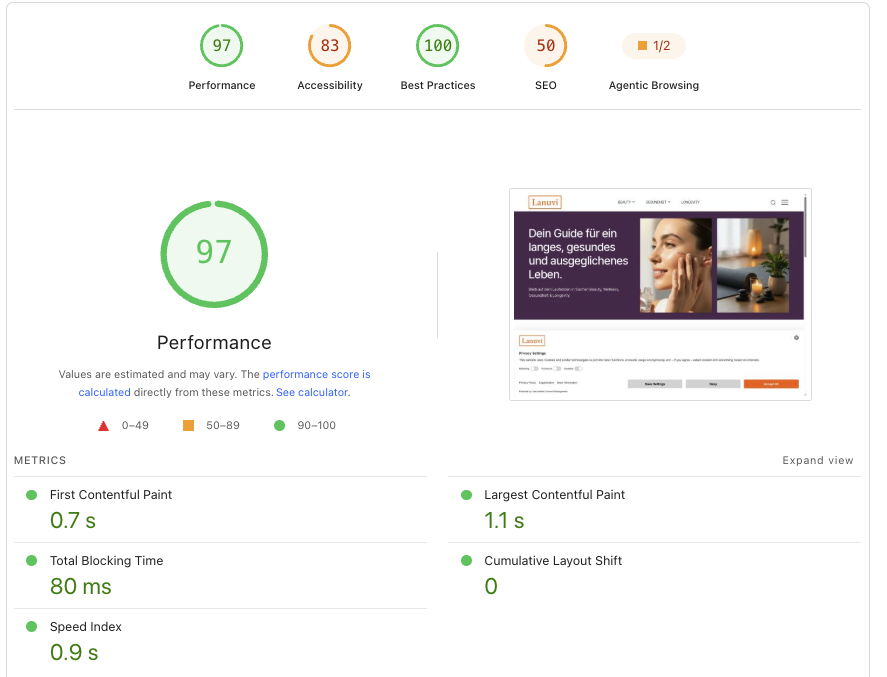
Converting to WebP typically produces a meaningfully smaller file at comparable visual quality. The exact reduction depends on the source image, its dimensions, and your compression settings — but across a full page, the compounding effect is where it shows.
Fifteen images, each substantially lighter, is a different page entirely.
This applies to photographs and other raster images. Logos and icons belong in SVG, which is a different job with its own security trade-offs.
What doesn't change: how your site looks, how your editors work, or how your theme is built. That's what makes this the highest-leverage fix on most sites — it improves delivery without touching design.
Why doing it manually always fails
Most teams already know they should compress images before uploading. Some even do it, for a while.
Then a new writer joins. Or a deadline hits. Or someone uploads twelve product shots in a hurry on a Friday afternoon.
One person uploading occasionally can maintain the habit. A team publishing weekly cannot — and it only takes a few months of drift to undo a cleanup that took hours.
The fix isn't better discipline. It's removing the step from the workflow entirely.
Where CodePros Image Optimizer fits
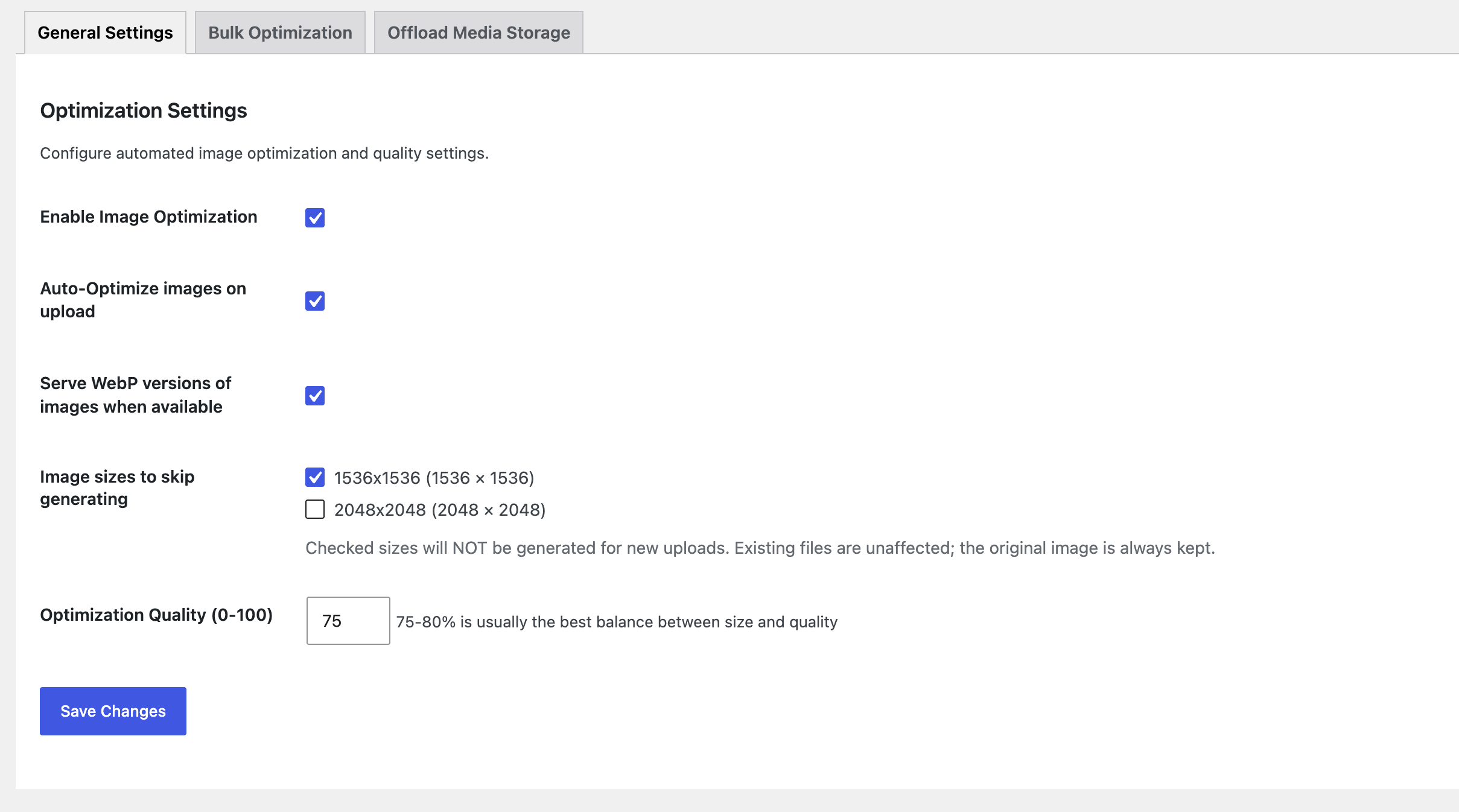
CodePros Image Optimizer converts uploads to WebP automatically, the moment they enter your media library. Your originals stay untouched. Your editors change nothing about how they work.
The free version handles every new upload going forward, with quality controls and automatic WebP serving to supported browsers. If your library is already clean and you just want to keep it that way, that's all you need.
Pro exists for the harder problem: the library you've already built. Thousands of images uploaded before anyone thought about file size.
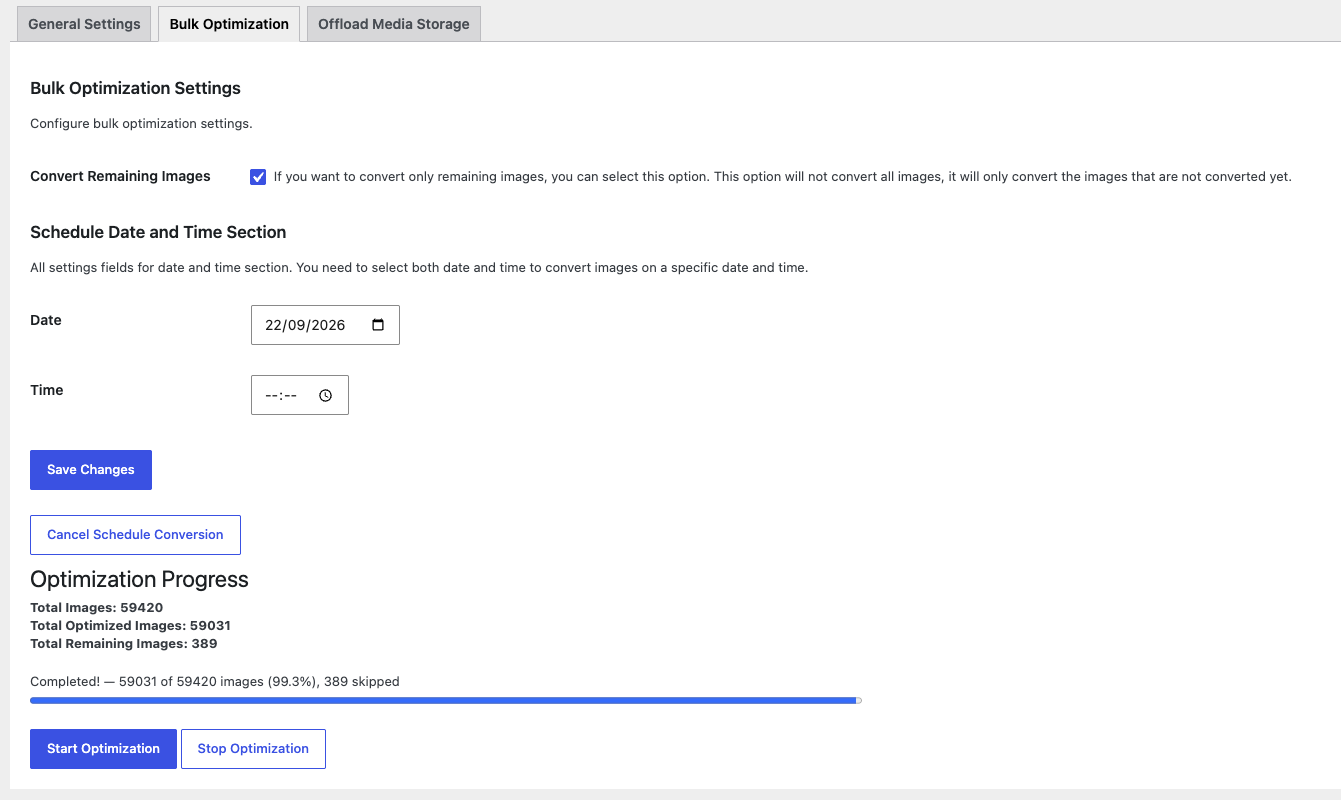
Pro adds:
- Bulk conversion across your entire existing library, with live progress tracking
- Scheduled processing so heavy conversion runs outside peak hours
- S3/R2 compatible storage and CDN delivery for sites where image delivery is its own infrastructure problem
Have thousands of images already sitting in your library? That's exactly what Pro was built for. See Pro plans →
Before you install anything
Two honest notes, whichever tool you choose.
This requires the Imagick PHP extension with WebP support. Most modern hosts include it — worth a quick check with yours if you're unsure.
Also worth knowing: WordPress 7.1 changed how image resizing works, moving it into the browser. That helps with upload failures — but it doesn't compress or convert anything, so it doesn't replace what this plugin does.
And image optimization is one part of performance work, not all of it. It sits alongside caching, script optimization, and server response time. It just happens to be the part with the best effort-to-impact ratio on most sites.
Start where it makes sense
If you're publishing regularly and your media library is growing, the question isn't whether to optimize images. It's whether you want to keep doing it by hand.
Not sure images are your biggest problem? Match the symptom to the fix first.
Continue Reading
- Checkout WooCommerce Address Autocomplete: Stop Losing Orders at Checkout →
- Email WooCommerce Order Emails Look Terrible. Here's How to Fix Them. →
- Security SVG Uploads in WordPress: Why It's Blocked and How to Do It Safely →
- News WordPress 7.1.2: Update Your Store Today. Here's What It Won't Fix. →
- Compare Which Code Pros Plugin Do You Need? →
- Plugin CodePros Image Optimizer — Features & Pricing →